
Your Smartphone's Settings Menu, Decoded

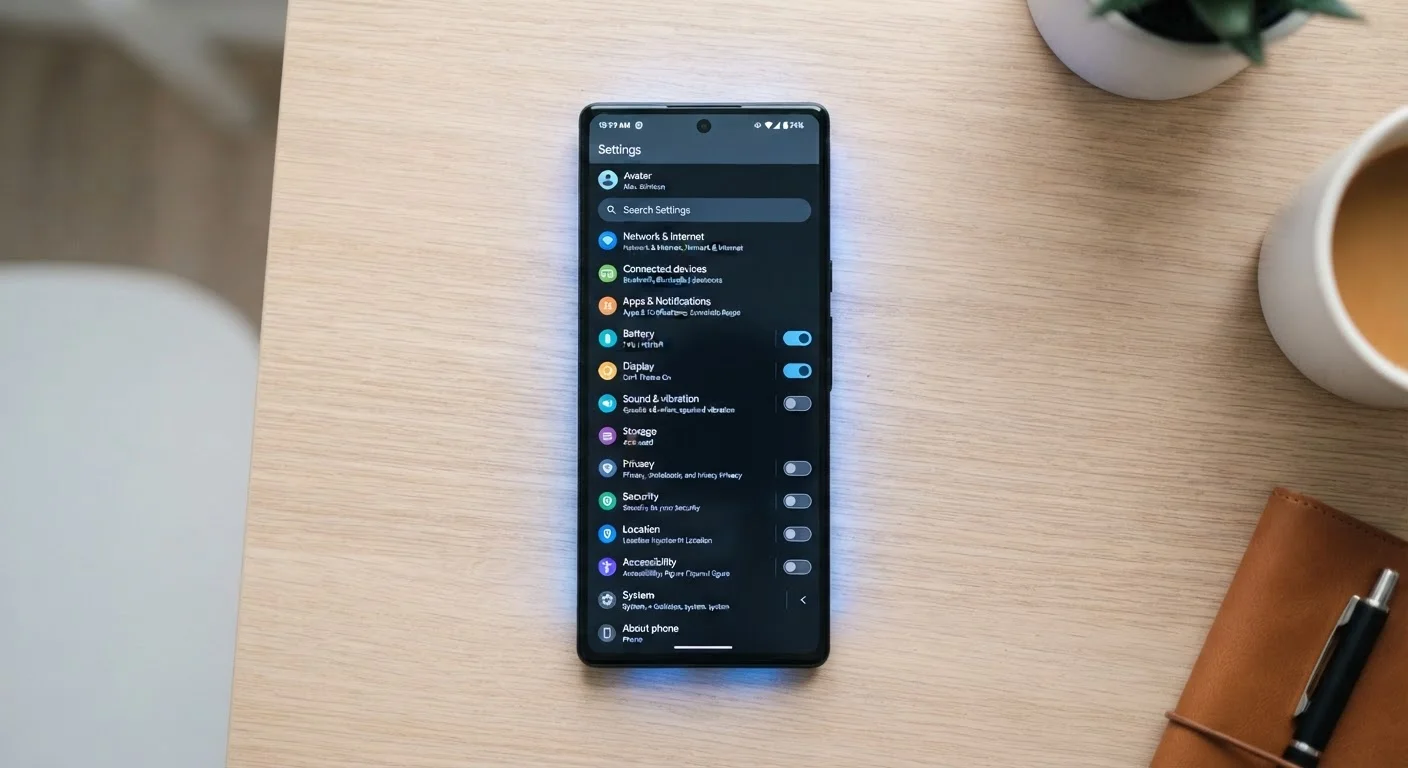
Photo: TotemBuzz.com | Your Lifestyle Companion editorial
Why the Settings Menu Feels Overwhelming (And How to Think About It)
Most smartphone users tap through maybe a dozen of the same apps every day and never venture into Settings — until something goes wrong. The menu can look like an intimidating wall of options, but it's actually organized around a few logical categories: connectivity, privacy, display, storage, and accounts. Once you recognize those buckets, the rest starts to make sense.
If you're still getting comfortable with your device overall, our guide for new smartphone users covers the full setup process from scratch. This article focuses specifically on the Settings menu itself — what the most common options control and which ones are worth paying attention to.
| Settings menu categories | Connectivity, Privacy, Display, Battery, Storage, Accounts |
| Where to find app permissions | Settings > Privacy (iOS) or Settings > Apps > Permissions (Android) |
| Low Power Mode effect | Reduces background activity to extend battery life |
| Airplane Mode behavior | Disables cellular, Wi-Fi, and Bluetooth simultaneously |
| Common cause of phone slowdowns | Storage nearly full — check Settings > Storage |
Connectivity Settings: Wi-Fi, Bluetooth, and Mobile Data
Wi-Fi lets your phone connect to a local wireless network (like your home router or a coffee shop hotspot). When Wi-Fi is on and connected, your phone uses that network for internet traffic instead of your cellular plan. Bluetooth is a short-range wireless signal used to pair accessories — headphones, speakers, keyboards, and similar devices. It does not use your internet connection or data plan.
Mobile Data (sometimes labeled Cellular Data) controls whether your phone uses your carrier's network to access the internet when Wi-Fi isn't available. Turning it off prevents apps from using data in the background, which matters if you have a limited monthly data allowance.
For a deeper look at how these three signals differ, see our article on Wi-Fi, Bluetooth, and mobile data explained.
Airplane Mode disables all wireless radios at once — cellular, Wi-Fi, and Bluetooth. Turning Wi-Fi back on while Airplane Mode is active is generally permitted on most aircraft and lets you use in-flight Wi-Fi without re-enabling cellular.
Privacy and Permissions: What Apps Can Access
Under Privacy (or App Permissions on Android), you can see exactly which apps have been granted access to your camera, microphone, location, contacts, photos, and more. This is one of the most useful areas of Settings for anyone concerned about what their apps are doing in the background.
App Permission
An app permission is a specific type of access — such as camera, microphone, or location — that an app requests from your phone. You can grant or deny each permission individually in Settings.
Location Services
Location Services is a system setting that allows apps to use your phone's GPS and network signals to determine your physical location. Individual apps can be set to access your location always, only while open, or never.
Background App Refresh
This feature allows apps to update their content — new messages, news feeds, sports scores — even when you're not actively using them. Disabling it for apps you use infrequently can conserve battery and data.
Two-Factor Authentication (2FA)
A security setting that requires a second form of verification — such as a code sent to your phone — in addition to your password when logging into an account. It significantly reduces the risk of unauthorized access.
Screen Timeout
Screen timeout is the amount of time your phone waits before automatically turning off the display when not in use. A shorter timeout saves battery; a longer timeout is more convenient but drains power faster.
Each permission can typically be set to three states: Always (app can access anytime), While Using the App (access only when the app is open), or Never (access blocked entirely). For location specifically, choosing "While Using" rather than "Always" is a reasonable default for most apps that don't need your location 24/7.
To understand the broader picture of how apps collect data even beyond these permissions, our article on how technology quietly collects data is a helpful companion read.
Display, Battery, and Storage: The Everyday Performance Settings
Display settings let you adjust screen brightness, text size, screen timeout (how quickly the screen turns off when idle), and on many phones, a Night Mode or Blue Light filter that shifts the display warmer in low-light conditions.
Battery settings typically include a Low Power Mode toggle. When enabled, this reduces background activity — like automatic email fetching and visual effects — to extend battery life. It's worth turning on manually when you're running low rather than waiting for the phone to prompt you.
Storage shows how much space is used and what's using it — apps, photos, videos, system data. If your phone is running slowly or refusing to install updates, a full storage drive is often the reason. Most phones let you identify large files or unused apps directly from this screen.
Building a habit of checking storage and battery health periodically is one of the simplest maintenance steps you can take. Our article on everyday device maintenance habits walks through the full routine.
Settings Look Different on Every Phone
The content on this site is for informational purposes only and is not a substitute for professional advice. Always consult a qualified professional for guidance specific to your situation.