
What Happens When You Update Your Software — and Why It Matters

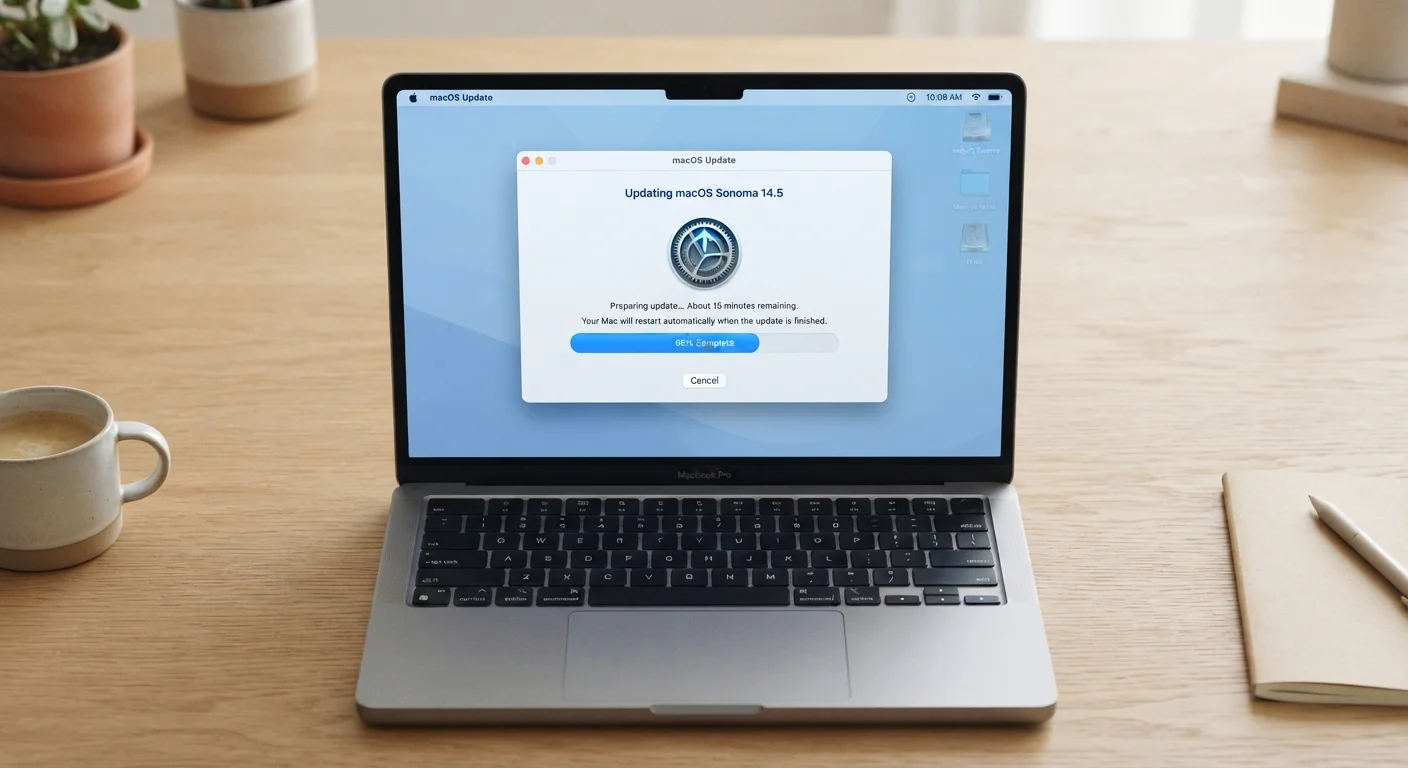
Photo: TotemBuzz.com | Your Lifestyle Companion editorial
Key Takeaways
- Software updates deliver security patches, bug fixes, and sometimes new features all at once.
- Skipping updates leaves known vulnerabilities open, which attackers can exploit.
- Updates can also change how much memory or battery an app uses.
- Your device usually needs to restart to fully apply an update.
- Automatic updates are generally the easiest way to stay protected without extra effort.
What an Update Actually Changes on Your Device
When an update arrives, it doesn't simply add a layer on top of your existing software. The update process replaces specific files — pieces of code, configuration settings, security certificates, or interface elements — with newer versions. Think of it like swapping out individual pages in a manual rather than printing an entirely new one.
Most updates bundle several types of changes together:
- Security patches: These close known weaknesses that hackers could exploit to access your data or take control of your device.
- Bug fixes: These address specific errors — an app that crashes on a certain screen, a feature that stops working under particular conditions.
- Performance improvements: Code can be rewritten to run more efficiently, reducing battery drain or improving load times.
- New features: New tools or interface changes that expand what the app or system can do.
After downloading, your device usually needs a restart to fully swap the old files for the new ones. During that restart, the system finalizes the installation — which is why interrupting a restart mid-update can sometimes cause problems.
Operating System vs. App Updates
Why Security Patches Are the Most Urgent Updates
Security vulnerabilities are weaknesses in software code that an attacker can exploit — for example, a flaw that lets a malicious website access files on your device without permission. Once a developer discovers such a flaw and releases a patch, the clock starts ticking: security researchers and attackers alike can often identify what the patch fixed, making unpatched devices a known target.
This is why security updates are treated differently from feature updates. Many operating systems allow you to install security patches automatically and separately from larger system upgrades. Enabling this option is one of the most straightforward protective habits you can adopt.
Turn On Automatic Security Updates
To understand how this connects to broader data privacy habits, see our overview of how technology quietly collects data in the background.
What Happens When You Skip Updates
Skipping updates occasionally — for example, postponing during a busy week — is unlikely to cause immediate harm. But chronically avoiding updates has compounding effects:
- Security exposure grows: Each skipped patch leaves a known weakness in place. The longer you wait, the more vulnerabilities stack up.
- App compatibility breaks: Apps are built to run on current operating system versions. An outdated OS can cause apps to crash, behave unexpectedly, or stop receiving their own updates.
- Support ends: Developers eventually stop maintaining old versions. Once a version reaches end-of-life, no further security fixes are released — regardless of new threats discovered.
These issues can subtly contribute to a device feeling sluggish or unreliable over time. For more on that dynamic, our article on why your phone or laptop slows down explains the underlying causes.
60%+
Of breaches involve unpatched vulnerabilities
Security industry analyses consistently find that a majority of successful cyberattacks exploit known vulnerabilities for which patches were already available.
Weeks
Typical window before known flaws are targeted
Security researchers note that attackers often begin probing for unpatched systems within days to weeks of a vulnerability becoming publicly known.
Building a Simple Update Habit
Staying current with software updates doesn't require constant attention. A few practical habits make it manageable:
- Enable automatic updates for your operating system and apps where possible. Most phones and computers offer this in settings.
- Schedule restarts during off-hours so updates apply without interrupting your work or daily use.
- Back up your data before major OS upgrades — not every update, but large version changes carry a small risk of unexpected issues.
- Check release notes when something behaves differently after an update, rather than assuming a problem.
Keeping software updated is one component of broader device maintenance. For a fuller picture of low-effort habits that keep devices running well, see our guide on everyday device maintenance habits.
Frequently Asked Questions
The content on this site is for informational purposes only and is not a substitute for professional advice. Always consult a qualified professional for guidance specific to your situation.