
Understanding Notifications: What They Are and How to Manage Them

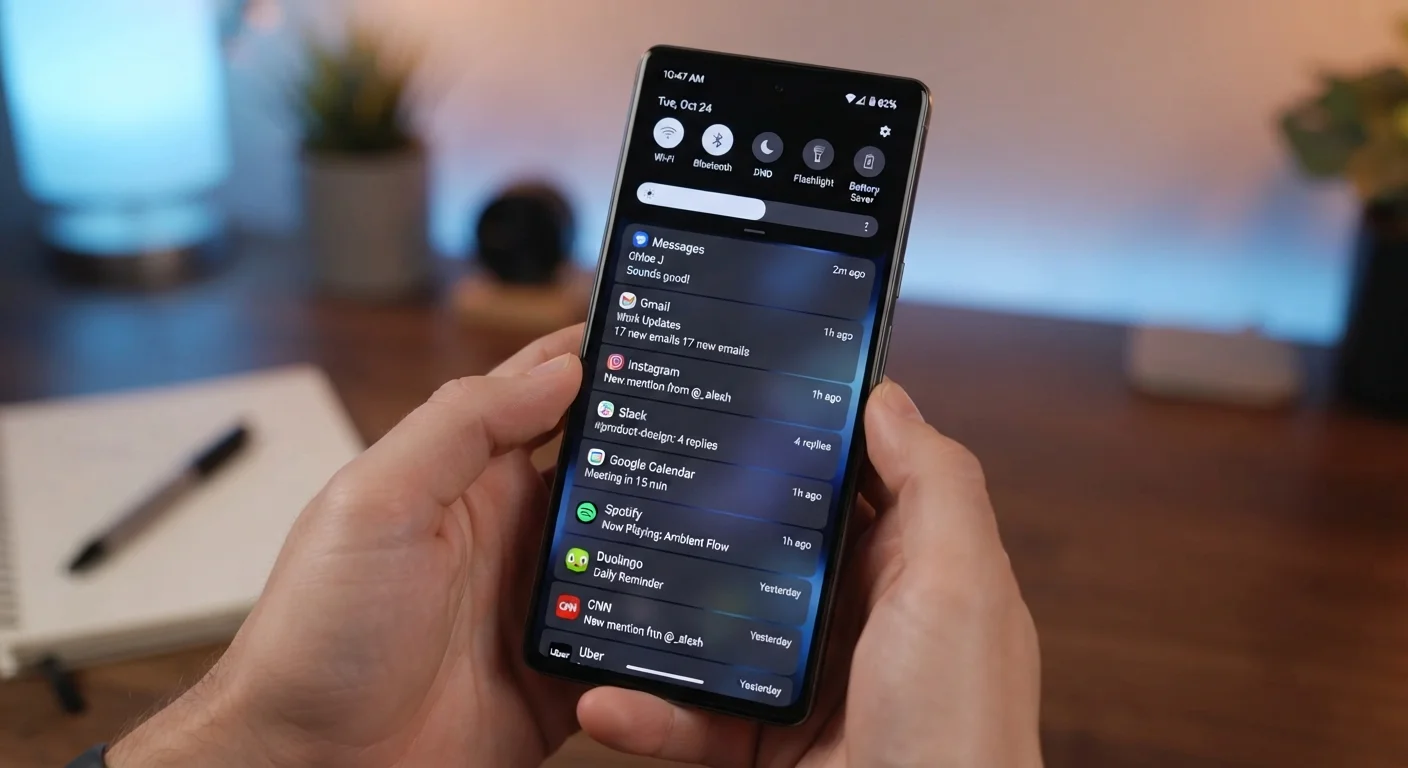
Photo: TotemBuzz.com | Your Lifestyle Companion editorial
Key Takeaways
- Notifications are messages sent by apps or your device to alert you to activity, updates, or reminders.
- Most devices let you control notifications app by app, so you can silence some without affecting others.
- Turning off non-essential notifications can reduce digital distraction and improve focus.
- Focus modes and Do Not Disturb settings let you block interruptions during set times or activities.
- Reviewing notification permissions periodically is a useful part of overall device hygiene.
What Notifications Actually Are
A notification is a message sent by an app or your operating system to alert you to something — a new message, a software update, a reminder, or an activity on a social platform. They can appear as banners that slide across your screen, sounds, vibration pulses, lock screen messages, or small badge numbers on app icons.
Notifications work because apps are granted permission by you (or by default during installation) to send alerts to your device's notification system. Your phone or computer acts as a relay: it receives the signal from the app and decides — based on your settings — how to display it.
Not all notifications carry the same weight. Some are genuinely time-sensitive and useful, like a two-factor authentication code or a calendar reminder. Many others are designed primarily to pull your attention back to an app you'd otherwise ignore. Understanding this distinction is the foundation of managing them well. For a deeper look at how your phone's settings work overall, see the smartphone settings guide.
Notifications and Attention Are Linked
How to Manage Your Notifications
Taking control of notifications doesn't require technical expertise — it's a series of small decisions made through your device's built-in settings. The steps below apply broadly across iOS, Android, Windows, and macOS, though the exact labels may differ slightly depending on your device or software version.
What you will need
Device Settings App
Used to view and adjust notification permissions for every installed app in one place.
Do Not Disturb / Focus Mode
A built-in feature on most smartphones that silences interruptions during specified times or activities.
Open your device's notification settings
On most smartphones, go to Settings and look for a section labeled Notifications (iOS) or Apps & Notifications (Android). On a Windows PC, search for Notification & action settings in the Start menu. On a Mac, go to System Settings > Notifications. This panel shows every app that has permission to send you alerts.
Review which apps currently have notification access
Scroll through the list and notice how many apps are enabled. You may find apps you rarely use — or had forgotten you installed — still sending you pings. This is a good moment to ask: does this app genuinely need to interrupt me? Common categories that can safely have notifications reduced or turned off include: shopping apps, social media, games, and news aggregators.
Adjust notifications for each app individually
Tap or click any app in the list to open its individual notification options. Depending on the platform, you may be able to:
- Turn off all notifications for that app entirely
- Allow only silent notifications — these appear in the notification shade but don't make a sound or light up the screen
- Disable banners or lock screen alerts while keeping badge counts (the number shown on the app icon)
Start with the apps that interrupt you most but add the least value.
Set up Do Not Disturb or a Focus mode
Do Not Disturb (DND) is a mode available on virtually every modern device. When active, it silences incoming notifications — sounds, vibrations, and screen wake-ups — while still storing them for you to review later. Most devices let you schedule DND to turn on automatically (for example, overnight or during work hours). On iOS and Android, Focus modes go a step further, letting you create named profiles (Work, Sleep, Personal) that each allow different apps or contacts to break through.
Revisit app permissions when installing new apps
When you install a new app, it will typically ask permission to send notifications during setup. This is a reasonable moment to pause and consider whether you actually want that access. It is always easier to say no upfront than to hunt down the setting later. Many apps function fully without notification access — the permission mainly benefits the app's ability to re-engage your attention.
One Setting, Many Apps
Not All Notification Requests Are Legitimate
Keeping Notification Settings in Good Shape Over Time
Notification settings aren't a one-time fix — they drift. New apps accumulate, permissions get granted without thought during busy moments, and your preferences shift. A light review every few months is all it takes to stay ahead of notification creep.
Signs your notifications may need attention again: your lock screen regularly fills up with alerts you ignore, you feel a reflex to check your phone even when it hasn't buzzed, or you're dismissing more notifications than you read. These are signals worth acting on — and the steps above can be repeated at any time.
Managing notifications thoughtfully is one part of a broader approach to digital well-being. The Mental Well-Being hub covers related topics like stress, sleep, and focus for readers who want to explore that connection further.
The content on this site is for informational purposes only and is not a substitute for professional advice. Always consult a qualified professional for guidance specific to your situation.